This guide explains how to subscribe to Oracle Cloud Infrastructure (OCI) announcements and receive them by email. The screenshots use the Singapore region as an example.
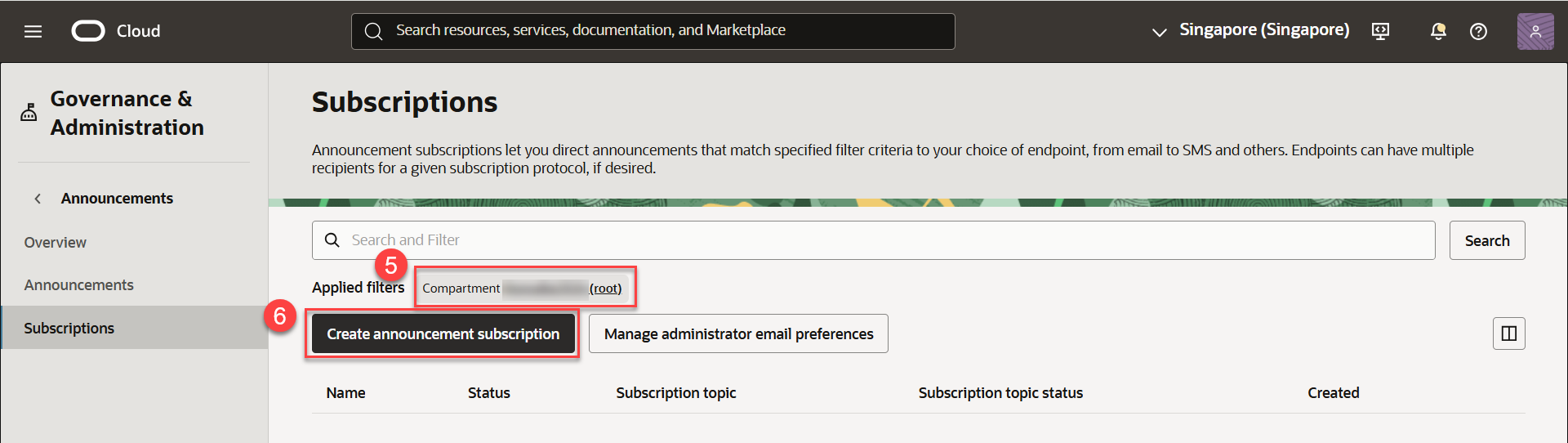
Important: Before creating the subscription, make sure the current compartment is the root compartment. It should appear as
<tenancy name> (root).
Open the Announcements subscription page
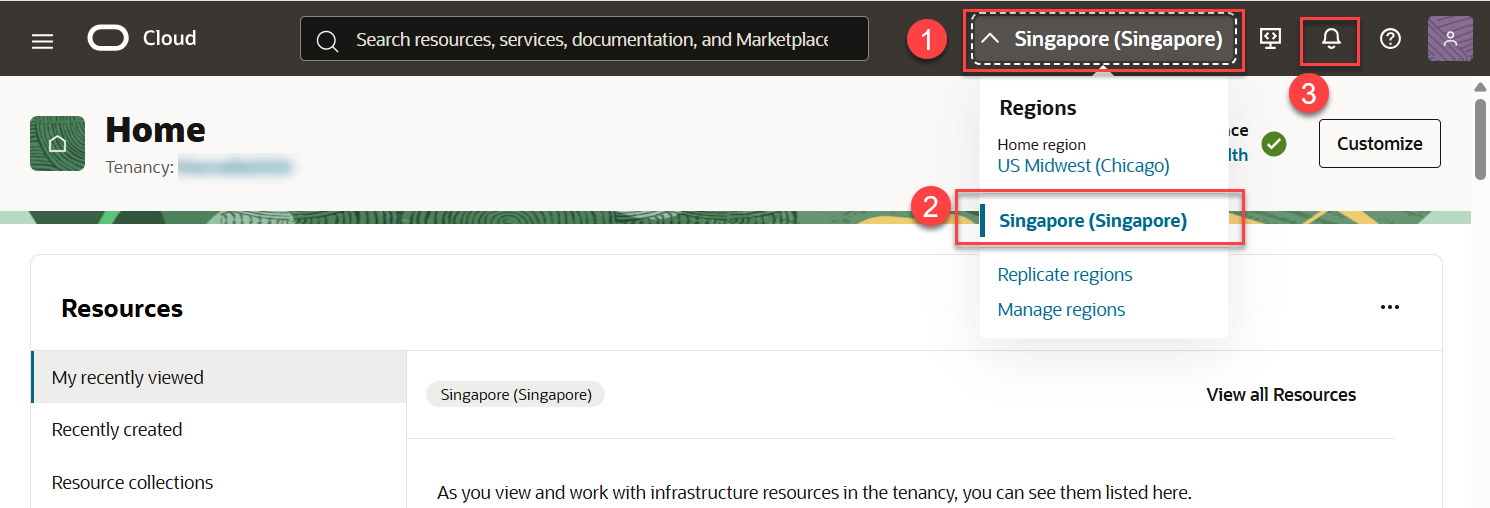
- Open the region drop-down menu.
- Select the target region. In this example, select Singapore.
- Click the Bell icon.
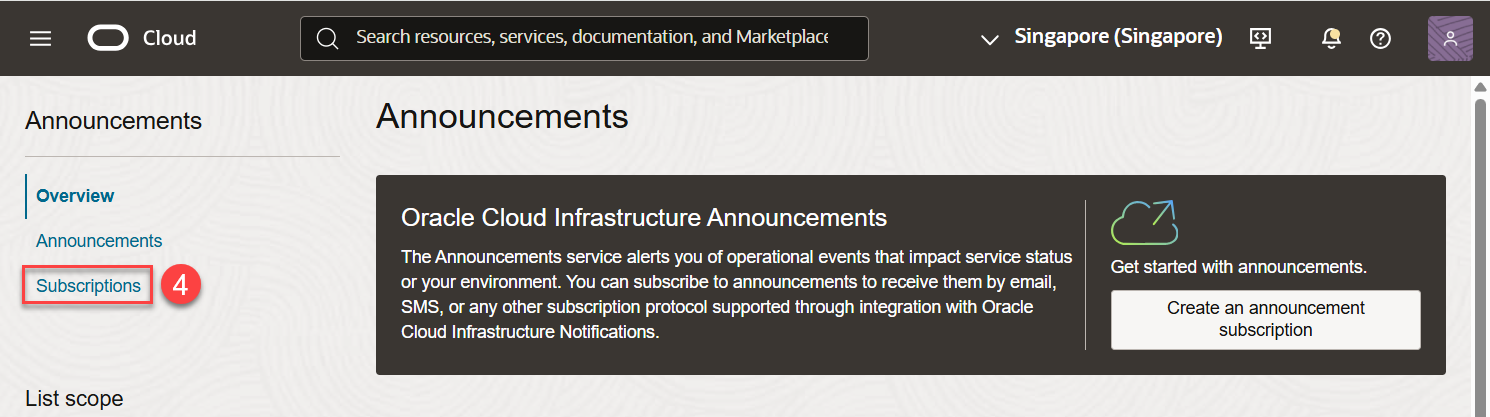
- Click Subscriptions.
- Verify that the current compartment is the root compartment. It should display as
<tenancy name> (root). Change it to the root compartment if necessary. - Click Create announcement subscription.
Configure the announcement subscription
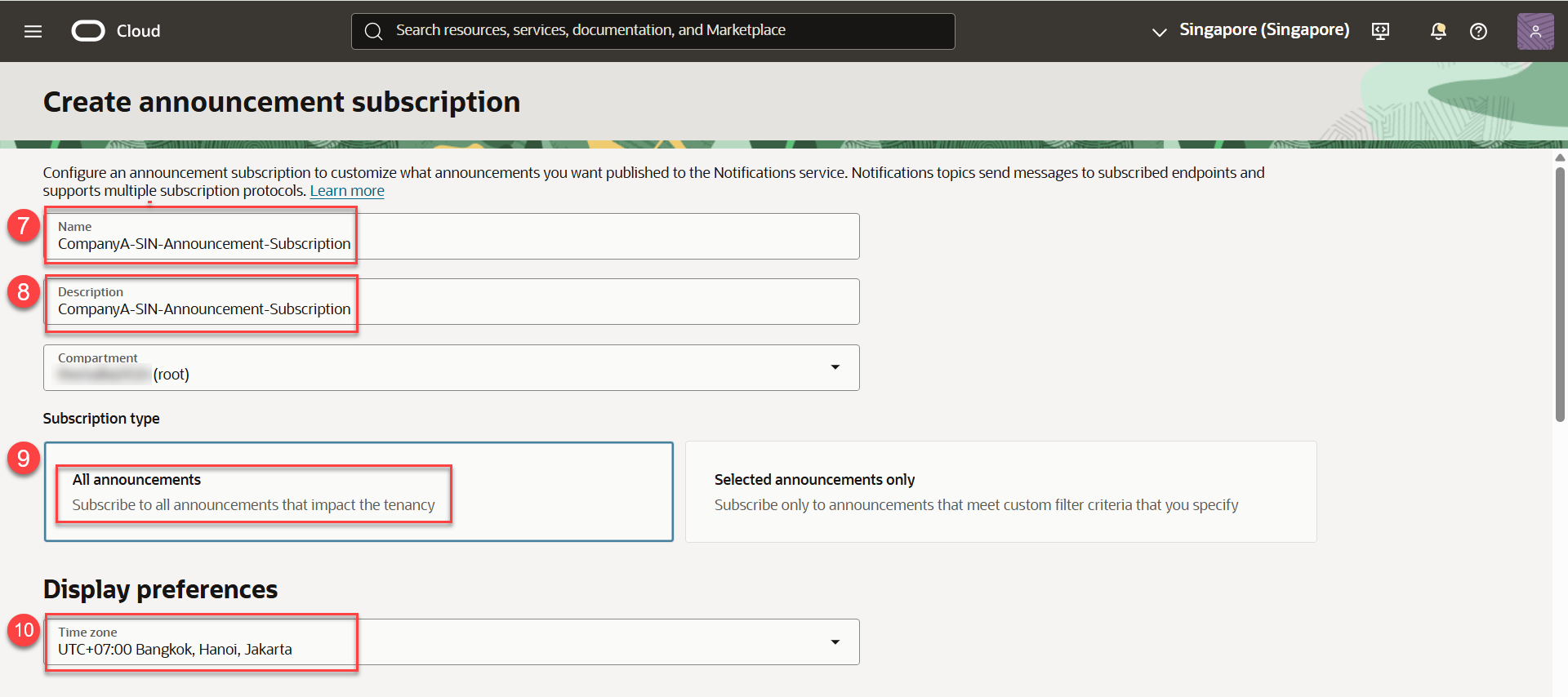
- Enter an announcement subscription name. Include the tenancy name and region where practical. Example:
CompanyA-SIN-Announcement-Subscription. - Enter a description.
- Select All announcements.
- Change the time zone to UTC +07:00 Bangkok.
Create a Notifications topic
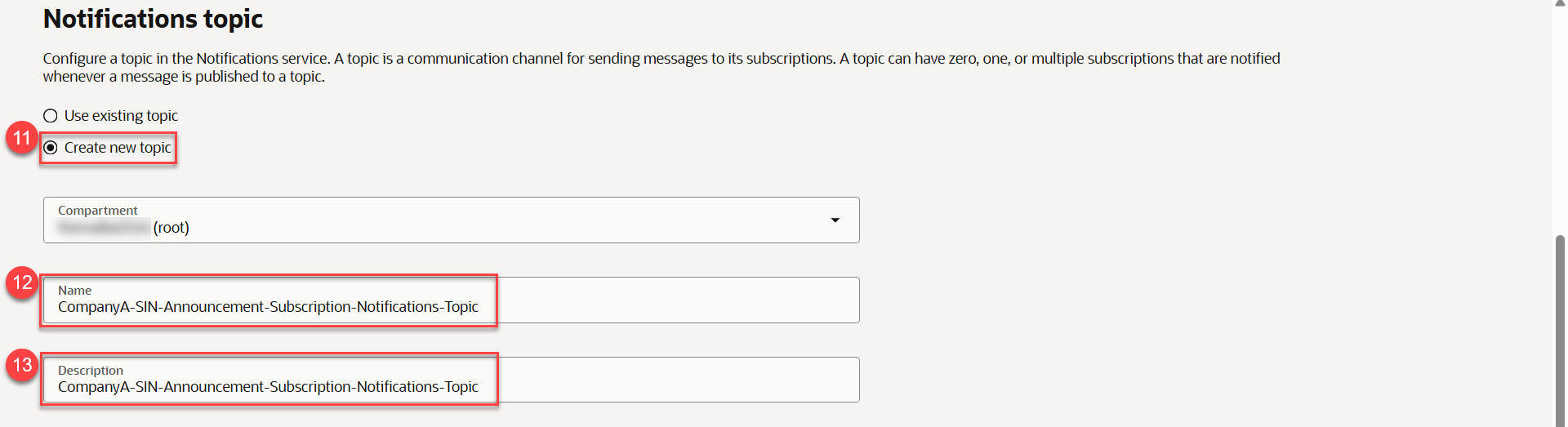
- Select Create new topic.
- Enter a topic name. Include the region in the name where practical. Example:
SIN. - Enter a description.
Add email recipients and create the subscription
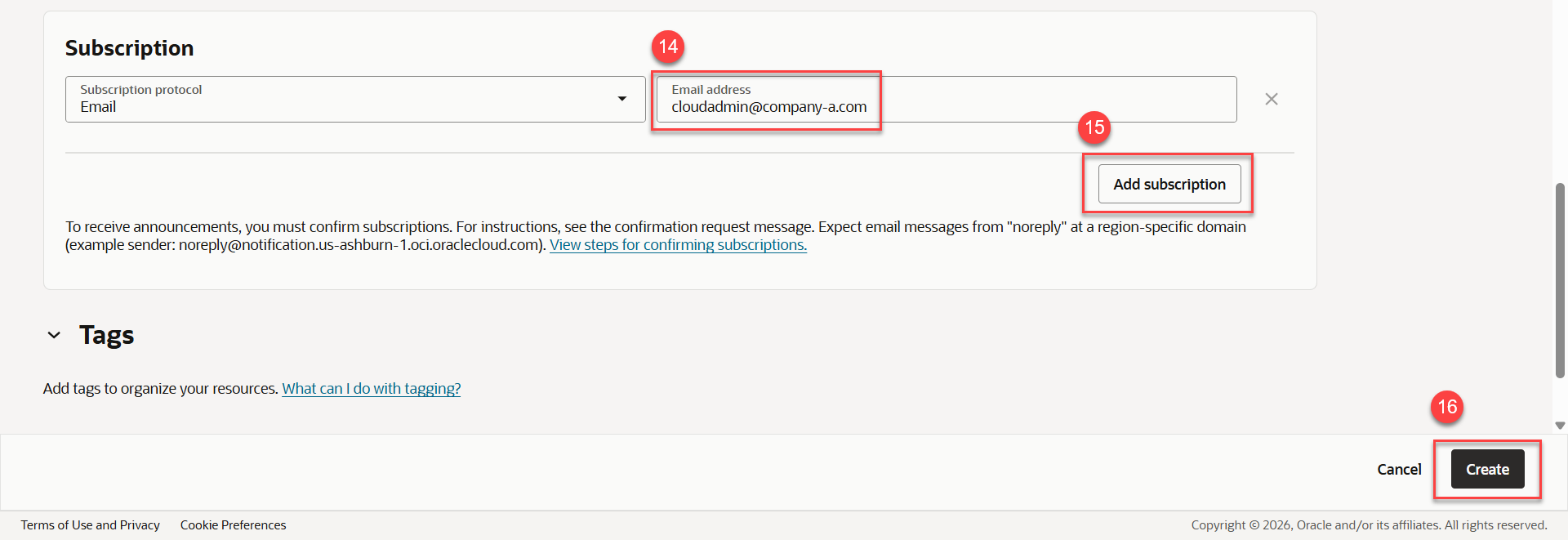
- Enter an email address. This can be a team alias or an individual address. A team alias is recommended because membership can be managed through Microsoft 365 or Google Workspace.
- To add another email address, click Add subscription, then enter the additional address.
- Review the information entered in steps 7 through 15, then click Create.
Open the Notifications topic
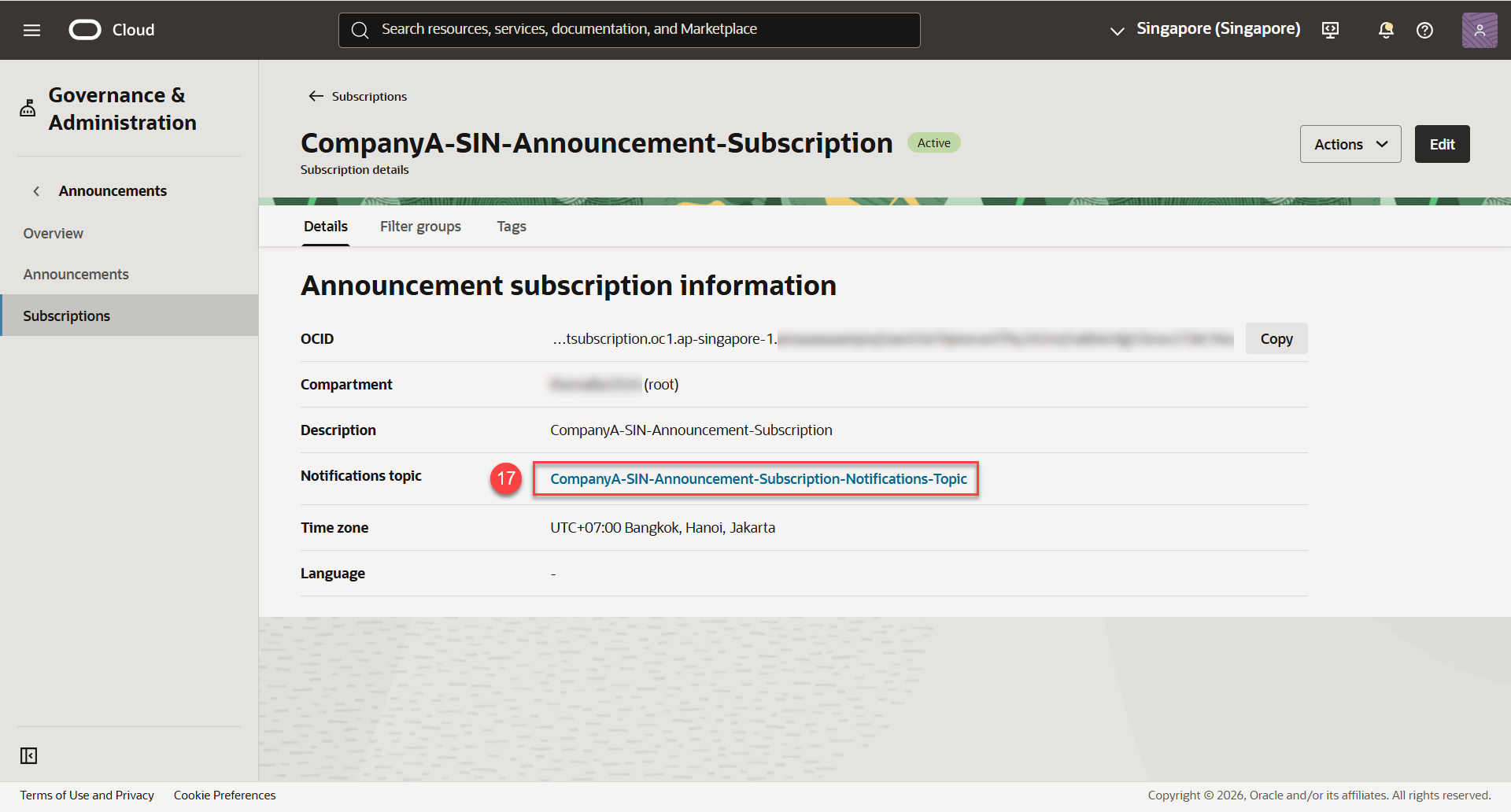
- On the Announcement Subscription details page, click the blue Notifications topic link.
Confirm the email subscription
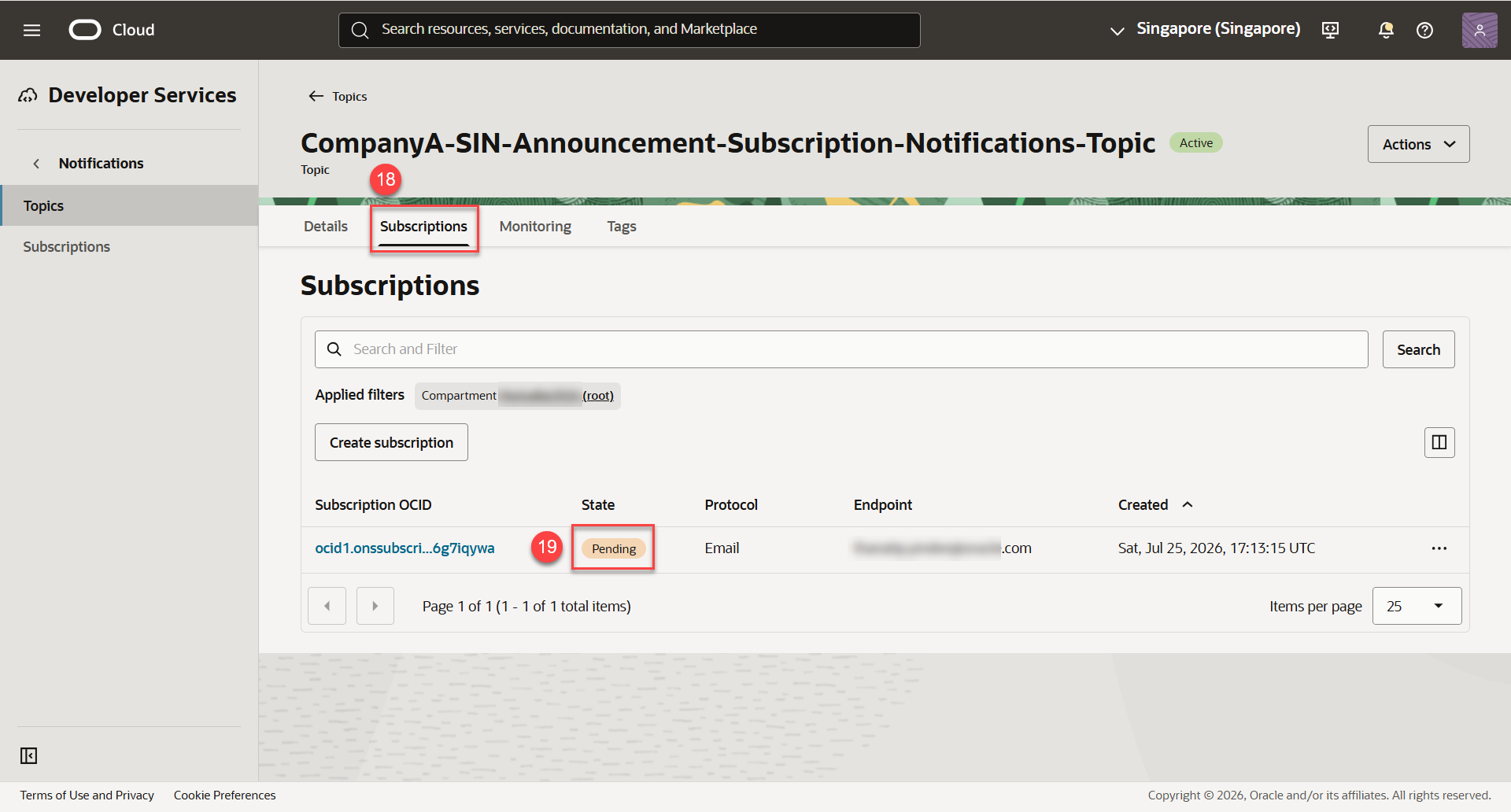
- Click the Subscriptions tab.
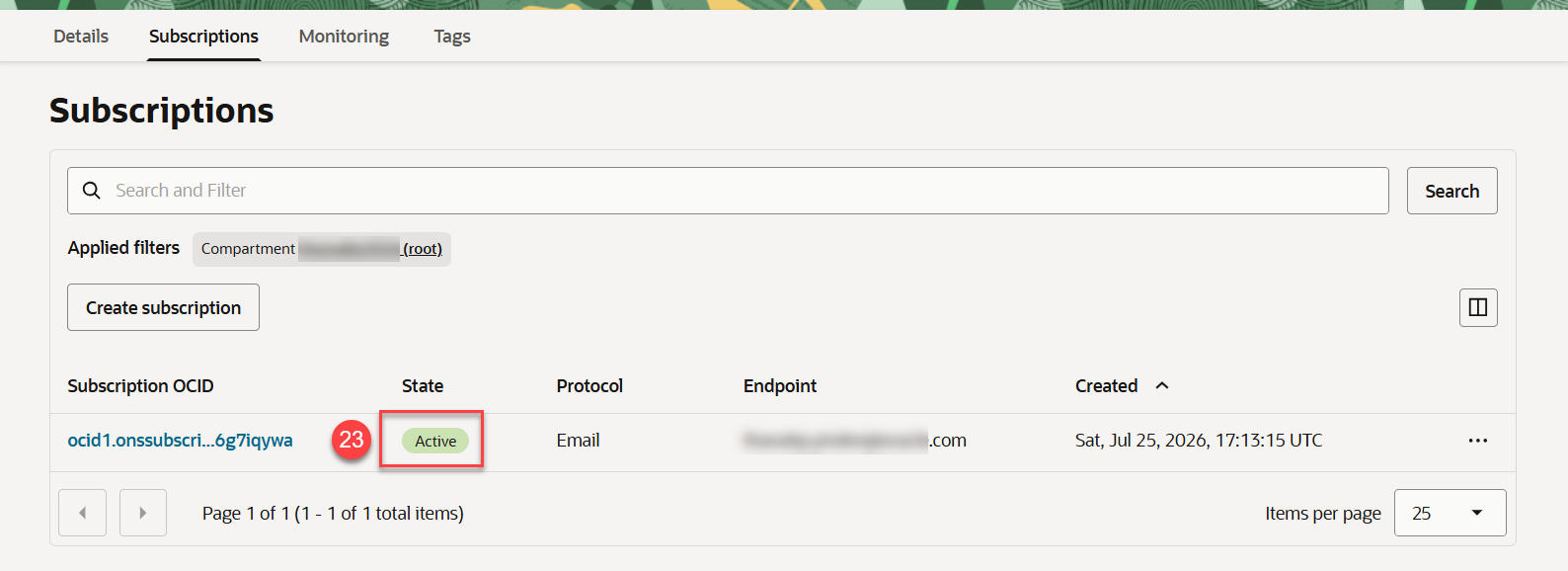
- Confirm that the subscription state is Pending. Email verification is required before it becomes active.
- Check the recipient inbox for an email with the subject Oracle Cloud Infrastructure Notifications Service Subscription Confirmation.
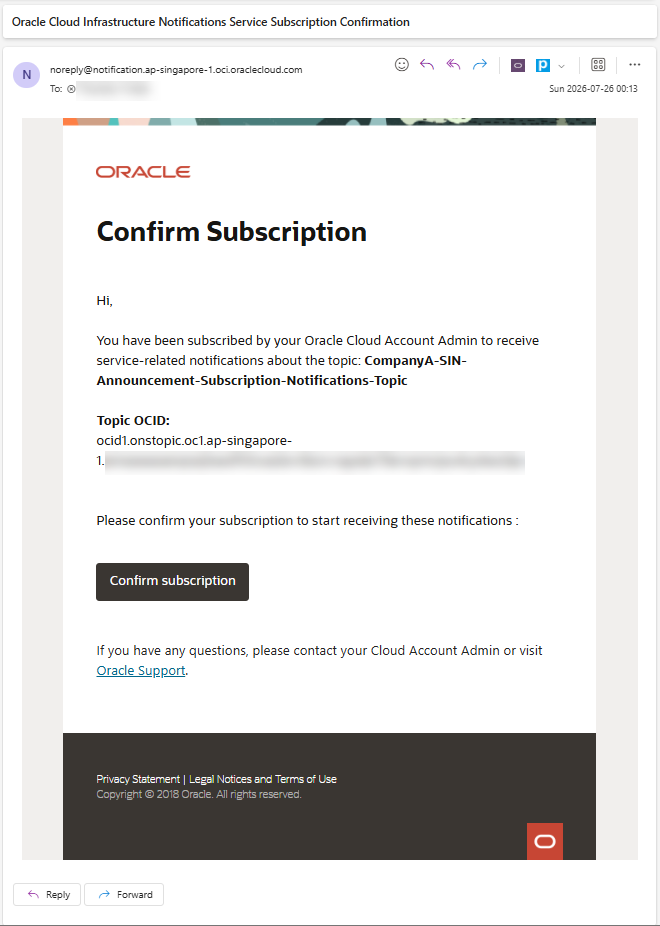
- Click Confirm subscription in the email.

- A Subscription confirmed message appears.
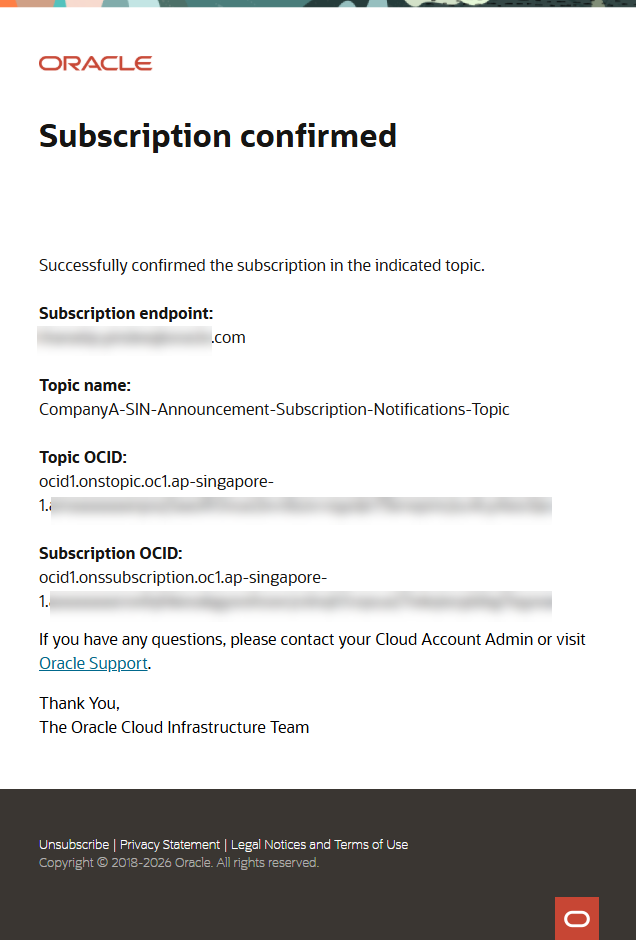
- Return to OCI and verify that the subscription state has changed from Pending to Active.
Repeat for other regions
- You have successfully subscribed to OCI announcements for the Singapore region.
- Repeat steps 6 through 23 for each additional region that requires an email subscription.


Leave a Reply